Individual Faculty and Co-Curricular Staff Annual Assessment Timeline
PLAN (Beginning of the semester):
- From the All Faculty Meeting or the Artichokes Assess Learning website, learn which two Institutional Learning Outcomes (ILOs) SCC will focus on this year.
- Within your department, consider which Program Learning Outcomes (PLOs) and Course/Co-curricular Learning Outcomes (CLOs) align with those ILOs. (Gen Ed courses and co-curricular events use the ILOs as PLOs).
- Determine which assignment you will use to assess the aligned CLO and set its parameters through the “Outcomes Assessment” option in Canvas or directly through Heliocampus for courses that don’t use Canvas. (See Heliocampus Instructions further down on this page).
DO (Before the end of the semester):
- Students engage with the planned assessment.
CHECK (After the learning experience, at the end of the semester or before):
- Submit your analysis of the results.
ACT (After submitting your analysis):
- Make adjustments to instruction, methodology, resources, etc. as inspired by the assessment analysis to improve student learning outcomes.
PLAN (Beginning of the semester):
- Plan to implement the adjustments to instruction, methodology, resources, etc. based on the First Assessment.
- Consider any feedback on the aggregated assessment data from your department’s PLO Lead and on your assessment from your SCC Assessment Academy mentor.
DO (Before the end of the semester):
- Students engage with the adjusted learning experience and the reassessment.
CHECK (After the learning experience, at the end of the semester or before):
- Submit your analysis of the reassessment results.
- Determine whether there is evidence of student learning improvement.
ACT (After submitting your analysis):
- Consider whether further adjustments are needed and whether another reassessment is warranted.
Program Leads Annual Assessment Timeline
PLAN (Beginning of semester):
- From the All Faculty Meeting or the Artichokes Assess Learning website, learn which two Institutional Learning Outcomes (ILOs) SCC will focus on this year.
- Determine which Program Learning Outcomes (PLOs) align with those ILOs. (Gen Ed courses and co-curricular events use the ILOs as PLOs).
- Determine how the courses or co-curricular experiences offered this semester have Course or Co-curricular Learning Outcomes (CLOs) that align with the chosen PLOs.
- In your first or second department meeting, confirm who will be conducting which assessments this semester.
- Help faculty or staff in your department determine which assignment they will use to assess the aligned CLO and help them set its parameters through the “Outcomes Assessment” option in Canvas or directly through Heliocampus for courses that don’t use Canvas. (See Heliocampus Instructions further down on this page).
DO (Before the end of the semester):
- Remind faculty or staff to conduct their assessment.
- Use department meeting time to discuss each phase of the assessment process and work through questions.
CHECK (After student engagement with the assessment, end of semester or before):
- Remind faculty or staff to submit their assessment analysis.
ACT (After the semester):
- Remind faculty or staff to develop adjustments to instruction, methodology, resources, etc. as inspired by the assessment analysis to improve student learning outcomes.
PLAN (Beginning of semester):
- Access the aggregated PLO data reports from Heliocampus.
- Analyze the data to determine a baseline of student learning related to the PLO.
- In your first or second department meeting, share the PLO data analysis and remind faculty or staff to implement the developed adjustments to instruction, methodology, resources, etc. this semester.
- Use department meeting time to share approaches to improvement.
DO (Before the end of the semester):
- Remind faculty or staff to implement developed adjustments to instruction, methodology, resources, etc. and conduct their reassessment.
CHECK (After student engagement with the assessment, end of semester or before):
- Remind faculty or staff to submit their reassessment analysis.
ACT (After the semester):
- Access the PLO reassessment data reports from Heliocampus.
- Analyze the data and determine if the adjustments show evidence of student learning improvement related to PLO.
- Determine whether another reassessment of the PLO is warranted.
- Plan to share the reassessment data with your department at the beginning of the following semester.
- Plan to celebrate evidence of student learning improvement, faculty or staff participation in the assessment process, and any actionable data.
Assessment Academy Mentors Annual Timeline
PLAN (Beginning of semester):
- Use the Mentor Rubric to provide feedback on the previous semester’s assessments within your assigned departments.
- Ensure that your assigned departments are aware of which Institutional Learning Outcomes (ILOs) SCC will focus on this year.
- If necessary, help PLO Leads determine which Program Learning Outcomes (PLOs) align with those ILOs. (Gen Ed courses and co-curricular events use the ILOs as PLOs).
- If necessary, help faculty or staff in your assigned departments determine how the courses or co-curricular experiences offered this semester have Course or Co-curricular Learning Outcomes (CLOs) that align with the chosen PLOs.
- If necessary, attend the first or second department meeting of your assigned department(s) to answer any questions about the semester’s assessment process.
- Confirm which faculty or staff will be conducting which assessments this semester.
- If necessary, help faculty or staff in your assigned departments determine which assignment they will use to assess the aligned CLO and help them set its parameters through the “Outcomes Assessment” option in Canvas or directly through Heliocampus for courses that don’t use Canvas. (See Heliocampus instructions at the bottom of this page).
DO (Before the end of the semester):
- As needed, help faculty or staff in your assigned departments design assessments that ensure the learning is measurable and ensure that the method clearly reflects the chosen CLO, focuses on what students should do or learn, and shows strengths and weaknesses in student learning. Consider reviewing feedback from the assessors’ previous assessments.
CHECK (At the End of the Semester or before):
- Remind faculty or staff in your assigned departments to submit their assessment analysis.
ACT (After the semester):
- Remind faculty or staff in your assigned departments to develop adjustments to instruction, methodology, resources, etc. as inspired by the assessment analysis.
PLAN (Beginning of semester):
- Access the aggregated ILO data reports (General Education courses only) from Heliocampus (shared during the first Assessment Academy meeting).
- Analyze the data to determine a baseline of student learning related to the ILO.
- The SCC Assessment Academy will report to the campus about ILO data analysis and baseline data for the year’s ILO.
- Review the assessments submitted by your assigned departments in the previous semester and ensure the learning is measurable and the assessments clearly reflect the chosen CLO, focus on what students should do or learn, and show strengths and weaknesses in student learning (Mentor Rubric).
DO (Before the end of the semester):
- Deliver feedback on the assessments submitted by your assigned departments in the previous semester, confirming that they meet the criteria or suggesting improvements to the assessment design.
- Remind faculty or staff in your assigned departments to implement developed adjustments to instruction, methodology, resource, etc. and conduct their reassessment.
CHECK (At the End of the Semester or before):
- Remind faculty or staff to submit their reassessment analysis.
ACT (After the semester):
- Access the ILO reassessment data reports from Heliocampus (General Education courses only).
- Analyze the data and determine if the adjustments show evidence of student learning improvement related to the ILO.
- At the beginning of the following semester, the SCC Assessment Academy will send out a report on ILO learning improvement and offer suggestions for continued learning improvement before the next time these ILOs are assessed.
- Plan to celebrate evidence of student learning improvement, faculty or staff participation in the assessment process, and any actionable data.
Heliocampus Set-up (for Program Coordinators)
- Go to the Heliocampus website, click on “Sign in with ScottsdaleCC SSO” and log into the Heliocampus with your Campus Email and Password.
- Click on the three horizontal lines on the top left and select “Programs” from the Menu. Type your Program name into the search bar to find your program, and then click on that program.
- Once on the program page, you will see the Program Checklist with 4 categories. These categories contain the tasks needed to set up the program.
- On the left-hand side, you will see different sections of the program page.
Details
- Click the Details section on the left-side menu of the program page.
- Ensure that the Program Attributes are correct including any associated degrees that are needed to be attached to the program.
- When the attributes are added, click the blue Save button.
- If needed, input the Mission Statement. After you have added the Mission Statement, click the blue Save button.
Settings
- Click the Settings section on the left-side menu of the program page.
- Scroll down to the Performance Goal section. You can adjust this goal, if needed. If changed, click the blue “Save Goals” button.
- No other settings on this page need to be adjusted.
Outcome Set
- This is where you will link the Institution Outcome Set to the program.
- Begin by clicking the blue “Add Outcomes Set(s)” button.
- Select Institution in the “Outcome Set” field. Select which outcome set you wish to assign to the program in the “Next, select one or more outcome set to Add” field.
- Click the blue “Add Outcome Set” button.
- You will now see the outcome set displayed in the “Program Outcome Sets” section.
Student Outcomes
- Please make sure that all program learning outcomes are listed in this section.
Educational Experiences
- This is where you will add the courses that are offered in the program (Program-specific courses only. General Education courses will be assessed separately.)
- Click the blue "Add Category" button. A category section will display. You can change the name of this Category, if needed. You can add multiple categories of courses.
- To add courses, hover over the 3 three horizontal lines on the top left of the category. Click on the first circle titled "Add Experience". Follow the prompts and add all courses.
There are 3 ways to curriculum map your program: Map by course, Map by outcome, or import the curriculum map via excel import.
Mapping By Course (Recommended)
- Click on the "Mapping By Course" section of the left-side menu.
- You will see the courses listed on the left side. Click the blue Edit button in the top right.
- On the left-side menu, you will see the available outcomes that can be linked to courses.
- You can drag and drop the outcomes to the courses to link.
Mapping By Outcome
- Click on the "Mapping By Outcome" section of the left-side menu.
- You will see the outcomes listed on the left side. Click the blue Edit button in the top right.
- On the left-side menu, you will see the available courses that can be linked to outcomes.
- You can drag and drop the courses to the outcomes to link.
Excel sheet import
- Click on the "Mapping By Course" section of the left-side menu.
- Click the "Mapping Template" button in the top right.
- Click "Export Mapping Template" and open the excel file that is downloaded.
- Follow the instructions on the template. When complete, click the save button.
- In HelioCampus, Click the "Mapping Template" button once more.
- Click "Import Mapping Template" and upload the complete template.
- When Curriculum Mapping is complete, you will need to finalize the program's Assessment Settings.
- Click on Settings in the left-side menu.
- The Assessment Setting section should have several options to view.
- Toggle ON the "Enable Program Assessments for this Program".
- Select the Term Type (you should only have 1 choice: Semester).
- Choose the term that you would like to have the Assessment associated with. (Best practice is to choose all terms that are active and available).
- You may toggle ON the "Only assess students with degrees matching the degrees assigned to this program" if wish to only view assessment results from students that are pursuing the degrees associated with the program (Best practice is to leave this toggled OFF).
- When finished with your Assessment Settings, click the blue "Save Assessment Settings" button.
- Once you have saved the Assessment settings, you may Publish the program by clicking the blue "Publish Program" button at the top-right.
*Note: The Publish Program button is not a Save button. If you wish to save any work in the program, you may do so by clicking the blue Save buttons located at the end of each section.
Completing Your Heliocampus Assessment through Canvas
These steps can only be completed after Program Creation and Curriculum Mapping have been published.
- Go to the Heliocampus website, click on “Sign in with ScottdaleCC SSO” and log into the Heliocampus with your Campus Email and Password.
- There are 3 ways to access your Course Sections
- Action Items Menu: You can click on your Course Section that will be located in your Action Items menu.
- Widget: You can view your Course Sections in your “My Course Sections & Syllabi” widget.
- Course Section Manager: Click on the three horizontal lines on the top left and select “Course Sections” from the Menu. Type your Course Section code into the search bar to find your course section, and then click the "Manage" button on the right side of the course section.
- Under the Assessment section of the left-side menu, click on "Assignments". You Canvas assignments should load on this page. If the page is blank, click the blue "Refresh Lms Assignments" button.
- Once Assignments are loaded, click the "Assignment Linking" section under Assessment. This screen can also be accessed from Canvas by clicking on 'Heliocampus Tools -- SCC' from the left-side menu.
- Outcomes that are available to be linked to Assignments will be listed on the left-side. Click on the outcome(s) you plan to assess this semester.
- Note the Proficiency Scale Settings for the outcome(s) in this course (Introduced, Reinforced, or Met) and the Proficiency Score. These should be determined by your department. If you need to adjust the Proficiency Score, click on “Proficiency Scale” and move the sliders to adjust which scores count as “minimally proficient,” “partially proficient,” and “proficient.”
- Once you click on an outcome, any previously linked assignments will appear in the “Link Assignments” column. Any assignment listed in that column will generate assessment data when you evaluate the assignment in Canvas. If you are not choosing a new assignment or making any changes, you can skip steps 1-4, evaluate the assignment as you normally would in your course, and proceed to step 7 after the evaluation is complete.
- If you are choosing a new assignment from your Canvas course for this assessment or revising a previous assessment, click on the “Manage” button on the top right of the Assignment Linking page. That will open a list of assignments from your course. Click the checkbox to link the whole assignment to the chosen outcome.
- If you would like to link only a specific part of the assignment, click on the “Criteria” button for the assignment, which will open the assignment’s existing grading rubric criteria. Click one or more items. You can determine the weight of each if you choose more than one. For more help, see this video “How to do Assignment Linking in Heliocampus Assessment and Credentialing.”
From your Heliocampus dashboard, click on the Main Menu (Waffle Button), then "Analytics," and then "Report Library." Scroll down to "Program/Course Assessment Reports" and choose a report to run. Your Assessment Reflection form (Third Step) will have links to a report generator and instructions for how to set report parameters. For details on individual student performance and artifacts, click on the course’s “People” action button in the "My Direct Assessments" tile on the Heliocampus dashboard. You can also look at individual student scores in Canvas. If the course is completed, in the Gradebook, hover your cursor over the "Student Name" field. Three vertical dots will appear. Click those, and then "Concluded Enrollments." This will repopulate students and their assignments into your Canvas course. See the 'Accessing Data in Heliocampus' section below for more information.
After you’ve evaluated the chosen assignment and have seen the data, go to the “My Data Collection” tile and click on the "pencil" icon of a course's Student Learning Outcome Reflection Form. Only one form is required to assess multiple sections of a course, but Heliocampus will generate a form for each section, in case some instructors would like to complete a separate form based on the different pace or modality of a course. Complete the following analysis:
- Reflection: What do the results say about student learning related to Course Learning Outcome/Co-curricular Learning Outcome (CLO) being assessed? What strengths and weaknesses in student learning can be learned from the results? Where did students seem to be struggling the most?
-
Continuous Improvements: Based on your reflection, what revisions to instructional methods could be made between now and a subsequent assessment to improve student achievement of learning outcomes? Are there any additional resources that could improve student learning outcomes?
If this is a Reassessment after improvements have been made, a third question should be addressed
- Reassessment: Did the revisions you made after the previous assessment result in student learning improvement? Explain the evidence.
- Remember to make necessary adjustments to improve student learning. Your aim is to see evidence of student learning improvement on a subsequent assessment.
After your submit your form, it will be sent to the Assessment Committee who will evaluate the assessment reflection according to the following criteria:
- The assessment focuses on specific behaviors or products that demonstrate what students should learn to do or know.
- Evaluation criteria can be observed and/or reasonably measured.
- Evaluation criteria are relevant/applicable to the learning outcome(s).
- The measurement provides a range of success/achievement.
- Results can be used to identify specific strengths or weaknesses in students' learning of the outcome(s).
- The assessment considers how improvement in learning related to the outcome could be achieved.
- If the Assessment Reflection received a "No" or "Unclear" response, it will be sent back for review. If it is approved, the Assessment Reflection will be forwarded to your Department Chair to be included in Program Review. Once your Department Chair approves the Assessment Reflection, you will be able to find it in your "Completed Forms" folder in your "My Data Collection Forms" tile on your Heliocampus dashboard.
Completing Your Assessment Outside of Canvas (Direct to Heliocampus)
HelioCampus Resources: Course Section Assignment Linking
- Go to HelioCampus and use your MEID and password to sign in.
- Scroll down until you see the “My Course Sections & Syllabi” section.
- Click the Pencil icon on your course of interest. This will take you to the Home Page.
- On the Course home page, click on Assignments.
- Click on “+ Add Assignment”.
- When the window opens, type a Name, Description, and Maximum Score for the assignment in the appropriate fields.
- If you plan to import scores from another system, from the Assignment Type dropdown menu, choose “Import Scores.”
- Leave the Rubric Visibility setting as is (student won’t be able to access it in Heliocampus).
- Click Save.
- One the Course home page, click on the Assignment Scoring dropdown menu.
- Select “Download Scoring Template”
- When the window opens, choose the assignment you want from the list, and then “Next.”
- On the second window, click on “Download.”
- Input the scores manually into the Excel document after downloading. Make sure to save your file. Do not alter the file other than entering the scores.
- On the Course home page, click on the Assignment Scoring dropdown menu and select “Import Scoring Template”
- When the window opens, click on “Select File & Upload.”
- Select the File from the list and then click “Next.”
- On the next window, click on “Import Data,” then “Yes, Continue and Import my Data,” and then “Finished.”
- You should now notice that the assignment has been completely scored in Heliocampus!
After you’ve evaluated the chosen assignment and have seen the data, go to the “My Data Collection” tile and click on the "pencil" icon of a course's Student Learning Outcome Reflection Form. Only one form is required to assess multiple sections of a course, but Heliocampus will generate a form for each section, in case some instructors would like to complete a separate form based on the different pace or modality of a course. Complete the following analysis:
- Reflection: What do the results say about student learning related to Course Learning Outcome/Co-curricular Learning Outcome (CLO) being assessed? What strengths and weaknesses in student learning can be learned from the results? Where did students seem to be struggling the most?
-
Continuous Improvements: Based on your reflection, what revisions to instructional methods could be made between now and a subsequent assessment to improve student achievement of learning outcomes? Are there any additional resources that could improve student learning outcomes?
If this is a Reassessment after improvements have been made, a third question should be addressed
- Reassessment: Did the revisions you made after the previous assessment result in student learning improvement? Explain the evidence.
- Remember to make necessary adjustments to improve student learning. Your aim is to see evidence of student learning improvement on a subsequent assessment.
After your submit your form, it will be sent to the Assessment Committee who will evaluate the assessment reflection according to the following criteria:
- The assessment focuses on specific behaviors or products that demonstrate what students should learn to do or know.
- Evaluation criteria can be observed and/or reasonably measured.
- Evaluation criteria are relevant/applicable to the learning outcome(s).
- The measurement provides a range of success/achievement.
- Results can be used to identify specific strengths or weaknesses in students' learning of the outcome(s).
- The assessment considers how improvement in learning related to the outcome could be achieved.
- If the Assessment Reflection received a "No" or "Unclear" response, it will be sent back for review. If it is approved, the Assessment Reflection will be forwarded to your Department Chair to be included in Program Review. Once your Department Chair approves the Assessment Reflection, you will be able to find it in your "Completed Forms" folder in your "My Data Collection Forms" tile on your Heliocampus dashboard.
Copy Assignment Links Using the Assignment Linking Manager" (for Program Coordinators Only)
Once assignment linking has been performed, assignment links can be copied to a different section (or multiple sections) within the same Course or Co-Curricular Activity. When copying rubric criteria or quiz questions, the following parameters are required:
Rubric Criteria
- Exact matching assignment names
- An equal number of rubric criteria
- Exact matching rubric criteria names
- Exact matching rubric criteria descriptions
- Exact matching rubrics associated with criteria should match (the number of the rubrics should be equal, and the rubric name and description should match)
Rubric Criteria
- Exact matching assignment names
- An equal number of quiz questions
- Exact matching quiz question names
- Exact matching quiz question descriptions
- Exact matching quiz question answers
- Exact matching answer options' order
- Exact matching number of answer options
- Exact matching correct option
- To copy a course section’s assignment links using the Assignment Linking Manager, navigate to Main Menu > Assessment > Assignment Linking Manager.
- Select an educational experience from the list in the Select an Educational Experience column or click the Filter button to locate the educational experience to copy from.
- Once an educational experience is selected, the Outcomes column will populate with outcomes associated with the selected educational experience. To copy an entire course section’s assignment links, select an outcome and choose Copy Assignment Links from the three dot menu.
- Via the Copy Assignment Links drawer, associated sections will display for selection; select the destination section(s) where assignment links will be copied to. When destination sections for copying have been selected, click Next. In order for assignment links to be copied from one section to another, assignments in both course sections' assignment names must be an exact match.
- If assignments match, a summary of the copy action and any additional steps will display; click Next to proceed.
- A final summary will display and Finish & Copy Links can be clicked to complete the copy action.
- Upon successful copy, the Assignment Linking Manager will refresh, and a message will display indicating successful copying.
Accessing Data in Heliocampus
Action Items no longer automatically pop up when you sign into the Heliocampus website. Click on the Bell icon on the top right to open your Action Items.
For each course section, hover over the "kabob" (three vertical dots) menu. When you hover, you'll see the "people" button (to see individual student data) and the "chart" button (to see your assessment results in chart form, though you'll have to scroll down to the assessed outcome to find the proper chart).
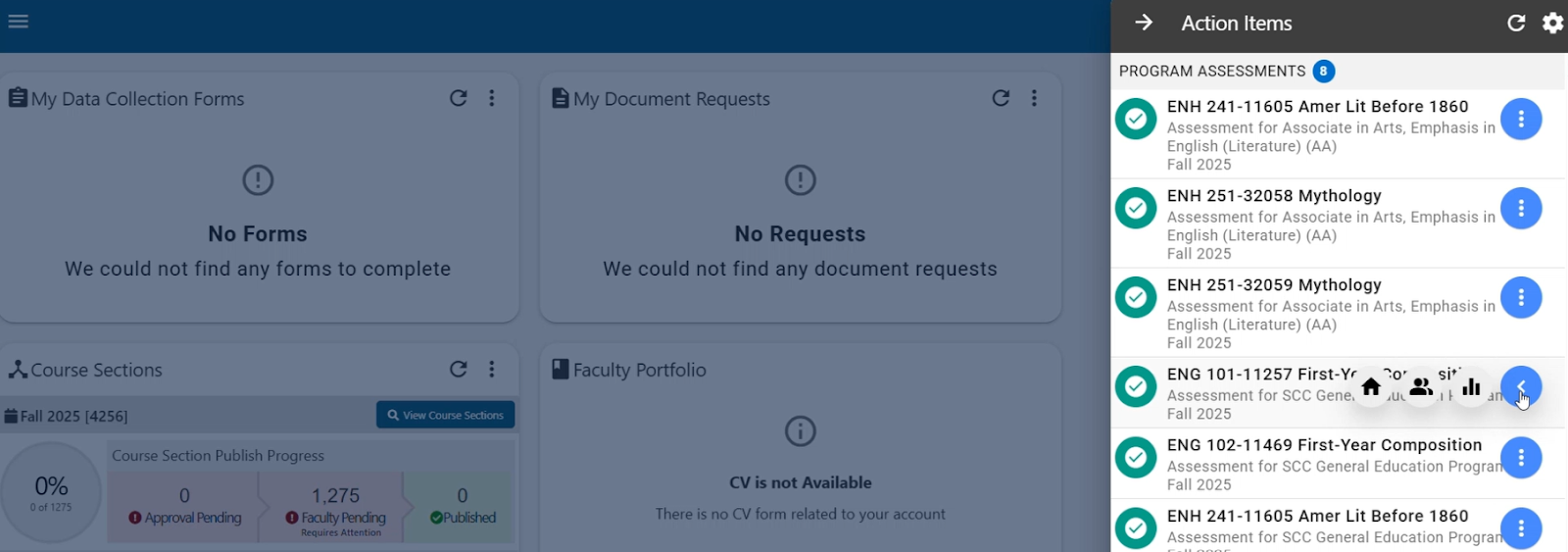
Click on the "waffle" button (nine dots in a square) on the top left of your dashboard screen.
Find "Analytics" and then "Report Library." In the "Report Library," "Program/Course Assessment Analysis" is now one of the top buttons (no longer a need to scroll down).
Set the following report parameters:
- Assessment Type: Program Assessment, CLO Assessment, or Both
- Term: Fall 2025
- Aggregate Level: Course
- College: Scottsdale Community College (*General Education (AGEC) Assessment must select BOTH “Scottsdale Community College” and “SCC Assessment Academy”)
- Department: Select your Department (*General Education (AGEC) Assessment must select BOTH your department and “General Education")
- Course: Select your Course
- Course section: You can limit the report to a specific section or select all for aggregated data across all sections.
You can skip other fields after that and click “Run Report” at the bottom.
Review the PLO/CLO Report for each outcome that is met and not met. The last 2 columns will show the Success percentage and the Performance Goal that was set for each CLO (currently default at 70%). If the Success percentage is less than the Performance Goal, then the CLO was not met. This percentage is not punitive. It’s the percentage to beat upon reassessment.
Sign in to Heliocampus, then from the Main Menu (waffle button in the top left), choose "Analytics," then "Report Library." Scroll down to find the report called "Outcome Assessment Summary."
Select these report parameters:
- Outcome Type Set: Program
- Outcome Set: Choose your Program's Outcome Set
- Term: Spring 2026
- Program: Choose your Program
- Outcomes: Select All (or choose one you want to see)
You can leave the remaining fields as is. Check that all selections are there (sometimes you need to reset one if a subsequent choice changes things), then hit "Run Report" at the bottom.
Assessment Deadlines
Curriculum Mapping / Assessment Turned On
- Can Begin: Once program is created
- Deadline: Last Day of Term
Assignment Linking
- Can Begin: Term Start Date
- Deadline: Last Day of Class of the following Term
Assessment Reflection Forms
- Can Begin: 2-3 weeks Before End of Term -- See Email for Notifications
- Deadline: Last Day of the Week of Accountability before the Following Term